
How to Add a Logo to Video: Size, Placement and Export
Add your logo to a music video the right way: file prep, size, placement, opacity, export settings and the YouTube and VEVO rules that decide where it can go.
How to Add a Logo to Video: Size, Placement and Export
To add a logo to a video, put a transparent PNG on a layer above your footage, size it at roughly 8–12% of the frame width, park it in a top corner with a safe margin, and export a separate marked copy while keeping a clean master. For a musician, label or manager, the harder part is deciding where the logo goes so it builds recognition without fighting the visuals or breaking a platform’s rules. On Music Video Marketplace you upload your audio and branding to a professionally filmed, ready-to-edit video and export a YouTube-ready file, so you never have to build the layout from scratch.
Musicvideomarketplacemusicvideomarketplace.comCreate a Branded Video for YouTubeMusicvideomarketplace helps musicians create a long-form video from their audio and branding, ready to upload to YouTube.VisitTL;DR
- Use a transparent PNG of your logo, exported at about twice the size you will display it, so it scales down cleanly.
- On 1080p landscape video, aim for 8–12% of frame width, 40–70% opacity and a margin of about 50–60 px.
- Top-right or top-left is the safest burned-in position on YouTube. Bottom-right is taken by YouTube’s own interface.
- VEVO does not allow burned-in logos during the video. Label or management logos may appear only at the end, for no more than 3 seconds.
- Keep an unmarked master and export a separate branded copy for each destination.
Table of Contents
- Burned-in logo or YouTube watermark: know which you are adding
- Prepare the logo file
- How big should the logo be?
- Where to place a logo in a music video
- Step by step: adding the logo in an editor
- Export and check before you upload
- Our view: the logo is the last 5% of the job
- Get a branded video without building it from scratch
- FAQ
- Sources
Burned-in logo or YouTube watermark: know which you are adding
There are two different things people mean by “adding a logo”.
A burned-in logo is part of the exported pixels. It travels with every download, repost and clip. A player overlay, such as YouTube’s channel watermark, sits on top of the video inside the player and can be changed without re-exporting. Swarmify’s guide draws exactly this line: if you want attribution that survives sharing, burn it in, and treat the channel watermark as a complementary subscribe cue.
For YouTube’s channel watermark, the image should be square, at least 150 × 150 pixels and under 1 MB. You can show it for the last 15 seconds, from a custom start time or for the whole video, and it is unavailable on videos made for kids, according to UniFab’s summary of YouTube’s requirements. Uploading a larger file will not make it bigger on screen, because YouTube controls the rendered size. Design it for the smallest view: a bold monogram works better than thin lettering.
Most artists want both. The channel watermark nudges viewers to subscribe, while the burned-in logo keeps your name attached when the clip is shared on other platforms.
Prepare the logo file
Good placement starts with a good file.
- Use a PNG with a transparent background. A JPEG will bring a white box with it. Trinity College Dublin’s video guidelines specify an alpha-channel PNG for digital watermarks, and the same logic applies to any brand.
- Make a single-colour version. The same guidelines recommend the white version of a logo unless the background is predominantly white. A white mark with a soft shadow of roughly 10–20% stays readable over most footage, per the Logo Resizer Tool guide.
- Export at about twice the display size. The same guide suggests this so the editor can scale down without softness. For a 1080p video where the icon will be about 190 px wide, a 400 px wide PNG is plenty.
- Simplify for small sizes. A logo with a strapline or fine detail turns to mush at 150 px. Make an icon-only or compact lockup for video.
If you are also building fonts into the video, our guide to music video fonts covers choosing and licensing them, which matters if your wordmark and your on-screen text need to match.
How big should the logo be?
Think in proportions, not pixels, so the same rule works at any resolution. The Daab brand-guidelines article recommends specifying size as a share of frame width, a minimum time on screen and clear space as a share of the frame.
For a burned-in logo on 1080p landscape video, the Logo Resizer Tool guide gives these working numbers:
| Element | Guide figure on 1920 × 1080 |
|---|---|
| Icon watermark | about 8–12% of width, roughly 155–230 px |
| Wordmark | roughly 230–345 px wide |
| Margin from the edges | about 50–60 px |
| Opacity | 40–70% for a watermark |
Those are starting points, not laws. Two habits make them work:
- Scrub several scenes. Check the logo over a bright shot and a dark shot before settling on opacity. If the background changes a lot, a restrained shadow or outline is more reliable than dropping opacity until the mark is unreadable, as the DaVinci Resolve Club guide advises.
- Keep clear space. The PV Editors Playbook specifies clear space equal to at least one letter-height of the logo on every side, so nothing crowds it.
Subtle beats loud. Point Blank Music School makes the point that for musicians, consistent artwork, colour and video style build recognition, and subtle repetition of a logo works better than bold overlays because the visuals should support the music, not compete with it.
Where to place a logo in a music video
The question “logo placement in music videos” has a short answer for each platform.
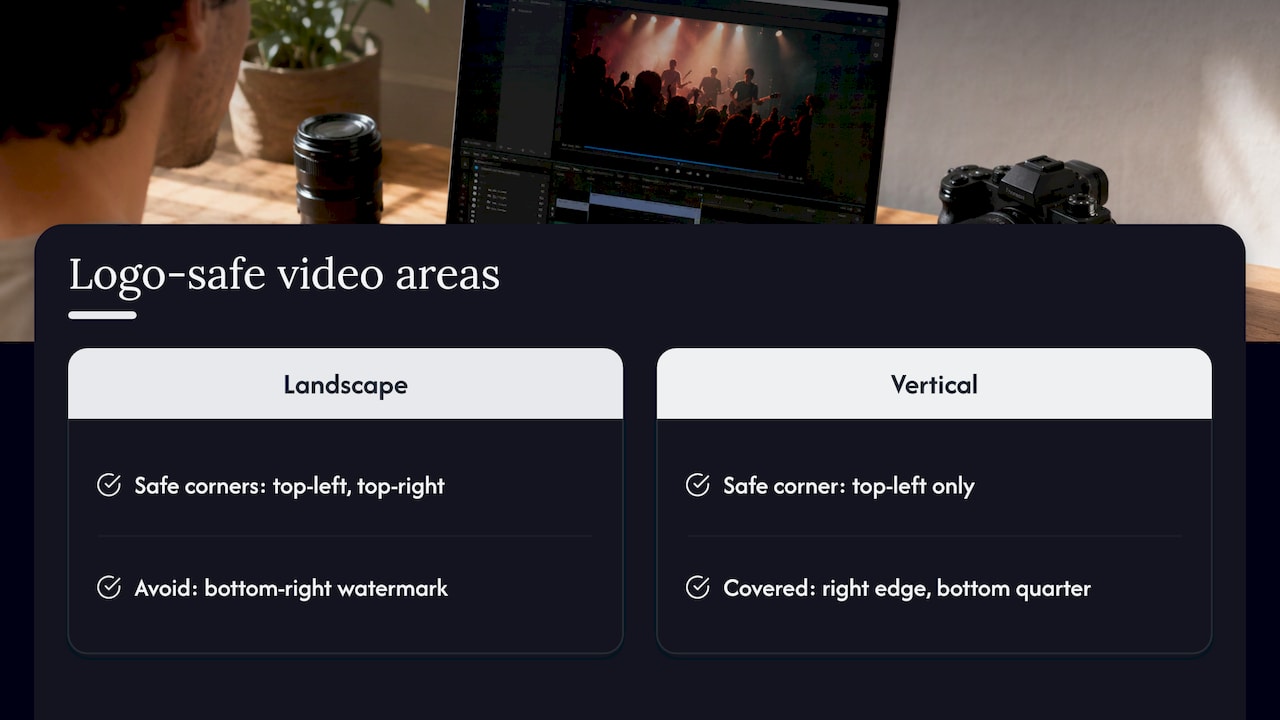
YouTube landscape (16:9). The bottom-right corner holds YouTube’s own branding watermark and, in thumbnails, the duration stamp. The safest burned-in positions are top-right or top-left, according to the Logo Resizer Tool guide.
Vertical (Shorts, Reels, TikTok). On vertical video, the right edge and bottom quarter are covered by app buttons and captions. The same guide says top-left is the only corner safe on all three. Our walkthrough on creating music video clips for social media shows how to cut short vertical versions from a full-length video, and each one needs its own logo check.
Left or right? The University of Exeter’s video editing guide notes that in the UK people tend to read right to left, so it suggests logos in a left-hand corner, reduced in size, for the duration of the video. Brand guidelines such as the Prime Video playbook and Trinity College Dublin’s put the mark top-right. Either works, as long as you choose one corner and stay in it. Consistency of scale and position matters more than the corner itself, as the Trinity guidelines stress.
Stay inside the safe area. Trinity’s guidance aligns the watermark to the 90% action-safe area, so TV-style cropping or player chrome never clips it. Our guide to the title safe zone in music videos explains how to find it and frame your own.
Take it off before the end. The Prime Video guidelines hold the logo throughout and remove it before the end slate. That gives your end card, with a link or release date, a clean frame.
The VEVO exception
If you are delivering to VEVO through a distributor, the rules are stricter. VEVO’s specifications, as published by Identity Music, prohibit burned-in logos in music videos. Production company, label or artist management logos are allowed only at the end of the video, for no more than 3 seconds in total across all promo items. Horus Music’s VEVO requirements page adds that text for lyrics or credits, and watermarks, are not allowed unless the video is specifically a lyric video. Check your distributor’s current delivery spec before you export a VEVO version, and keep a logo-free cut ready.
Step by step: adding the logo in an editor
The process is the same in any editing software that has layers.
- Import the video and the PNG. Place the video on the bottom track and the logo on a track above it.
- Extend the logo clip to cover the part of the video where it should show. For a full-length video, that usually means from the first frame until just before the end card.
- Scale and position. Use the transform controls to set the width to your target percentage and move it to the corner. Type numbers in rather than dragging by eye, so you can repeat the exact placement on the 9:16 version.
- Set opacity. Lower it to a watermark level. The DaVinci Resolve Club walkthrough uses 55% as an example, which sits within the 40–70% range above.
- Check the result. Scrub bright and dark scenes, then play the full export on a phone and a laptop.
- Add a fade if you like. A short fade in and out looks more polished than a logo that pops on. Daab suggests deciding how a logo arrives, as well as where it sits and how long it stays.
The point where this goes wrong is the repeat: every new single means redoing placement, checking safe areas and producing a vertical version. That is the part Music Video Marketplace is designed to take off your hands, since you upload your audio and branding to a ready-made video rather than building a layout from nothing.
Export and check before you upload
A logo that looks perfect in the editor can still break at export.
- Format. MP4 with H.264 High Profile video and AAC audio at 48 kHz is the standard recommendation. Punit’s UK post-production workflow cites YouTube’s suggested bitrates: 8 Mbps at 1080p for 24, 25 or 30 fps, 12 Mbps at 48, 50 or 60 fps, and 35–45 Mbps for 4K at standard frame rates.
- Frame rate. In the UK, frame rates are usually 25 or 50 fps, so match your export to your footage instead of defaulting to 30.
- Keep a clean master. Swarmify advises preserving the unmarked source and exporting a separate marked copy. A branding change then never means editing an already-watermarked file, and you avoid stacking generations of compression. Make one high-quality master first, then a version per destination.
- Watch it end to end on a second device before release.
- Sound. Do not forget the audio. Our guide to music video loudness on YouTube covers the level to aim for.
- Name the files properly. A tidy convention saves confusion between marked, unmarked and vertical cuts: see our music video file naming guide.
Finally, test how the logo reads in the thumbnail and the first seconds of playback. Our piece on music video thumbnail testing shows how to compare options properly.
Our view: the logo is the last 5% of the job
Most artists we talk to spend hours on the logo and minutes on the footage, when it should be the other way round. A logo only builds recognition when it sits on a video people want to watch to the end.
That is why we focus on the video itself. Every video in our catalogue is originally produced by professional filmmakers specifically for music, never created with AI or generic stock footage. The catalogue is built around customisation and fast release, without requiring a custom shoot.
For a musician, label or manager, that means the branding step is simple: bring your audio and your logo, and export a file made for YouTube. The time you save goes into what actually moves a release: the song, the thumbnail and the campaign behind it.
Music
Get a branded video without building it from scratch
If you release regularly, a repeatable routine beats a fresh edit each time. With Music Video Marketplace you can browse human-made, ready-to-edit, full-length music videos, upload your audio and branding, export a YouTube-ready video, generate short social clips and launch an ad campaign for your song.
Membership is £19.99 per month, and recurring extra videos are £9.99 per month per video. See the details on the pricing page, or browse the music video library to find one that suits your track.
FAQ
Can I put a logo on a video if I am not an editor?
Yes. All you need is a transparent PNG of your logo and a way to layer it over the video. Keep it to 8–12% of the frame width, in a top corner, at moderate opacity. On Music Video Marketplace you upload your branding together with your audio, so the video is ready to export for YouTube.
Should I use the YouTube channel watermark or burn the logo in?
Use both if the platform allows it. The channel watermark is a square image of at least 150 × 150 pixels, under 1 MB, which YouTube shows as a subscribe cue. A burned-in logo stays with the file when it is downloaded or reposted. Leave it out of any VEVO delivery, where burned-in logos are not allowed.
What opacity should a logo have?
A watermark usually sits between 40% and 70% opacity. Test it over both bright and dark scenes. If it vanishes in some shots, add a soft shadow or outline rather than making it fainter.
Where should my logo go on a vertical video?
Top-left. The right edge and the bottom quarter are covered by buttons and captions on TikTok, Reels and Shorts, so top-left is the corner that stays clear on all three.
Sources
- YouTube Watermark Size: 150 × 150 Minimum and Display Limits
- How to Add a Watermark to Video
- Logo Watermark Size for Video: YouTube, Reels, TikTok
- How to create brand guidelines for video
- PV Editors Playbook, Brand Guidelines
- Trinity College Dublin, Video guidelines 2021
- University of Exeter, Video Editing for Academic Purposes
- Vevo Video & Thumbnail Specifications
- VEVO Requirements and Information
- Add a Logo or Watermark in DaVinci Resolve
- Creating Visuals for Your Music: Tools and Techniques
- Video Editing and Post Production Workflow
Recommended
Read next
 Get Your Song Into Upload Ready Video in Days for Music ProfessionalsRelease-ready workflow for music professionals: license a full length, ad ready video, drop in your master, and export platform specific short clips in days.
 Album Sampler Video: How to Make One That Gets StreamsWhat an album sampler video is, how to structure and time it, how to plan teasers around release day, and how to build one fast from professional footage.
 Apple Music motion artwork: get YouTube-ready video fastUnlock the power of Apple Music motion artwork to create stunning YouTube videos and ads quickly. Get ready-made packages for fast, professional results.
 YouTube Shorts specs: the complete technical spec sheetDiscover the key YouTube Shorts specs: aspect ratio, resolution, format, and more to optimize your videos for maximum engagement.
Turn the idea into a finished music video.
Drop your track into the Studio and build your visual in minutes.